Stage editor guide
The editor is part of the game and turns a song into a stage. This guide shows the full path for anyone who has never made a stage.
Before you start
- The editor works on PC, with a mouse and keyboard.
- You need a music file in MP3, OGG or WAV format.
- Only publish songs you have the right to use: your own, free or licensed.
1. Create the stage
In the game, open LEVELS, go to MY STAGES and click NEW STAGE. Choose the song on your computer.
On first opening, the game tries to work out the song speed (BPM) and where the first beat is. After that, you only need to check them.
2. Learn the screen
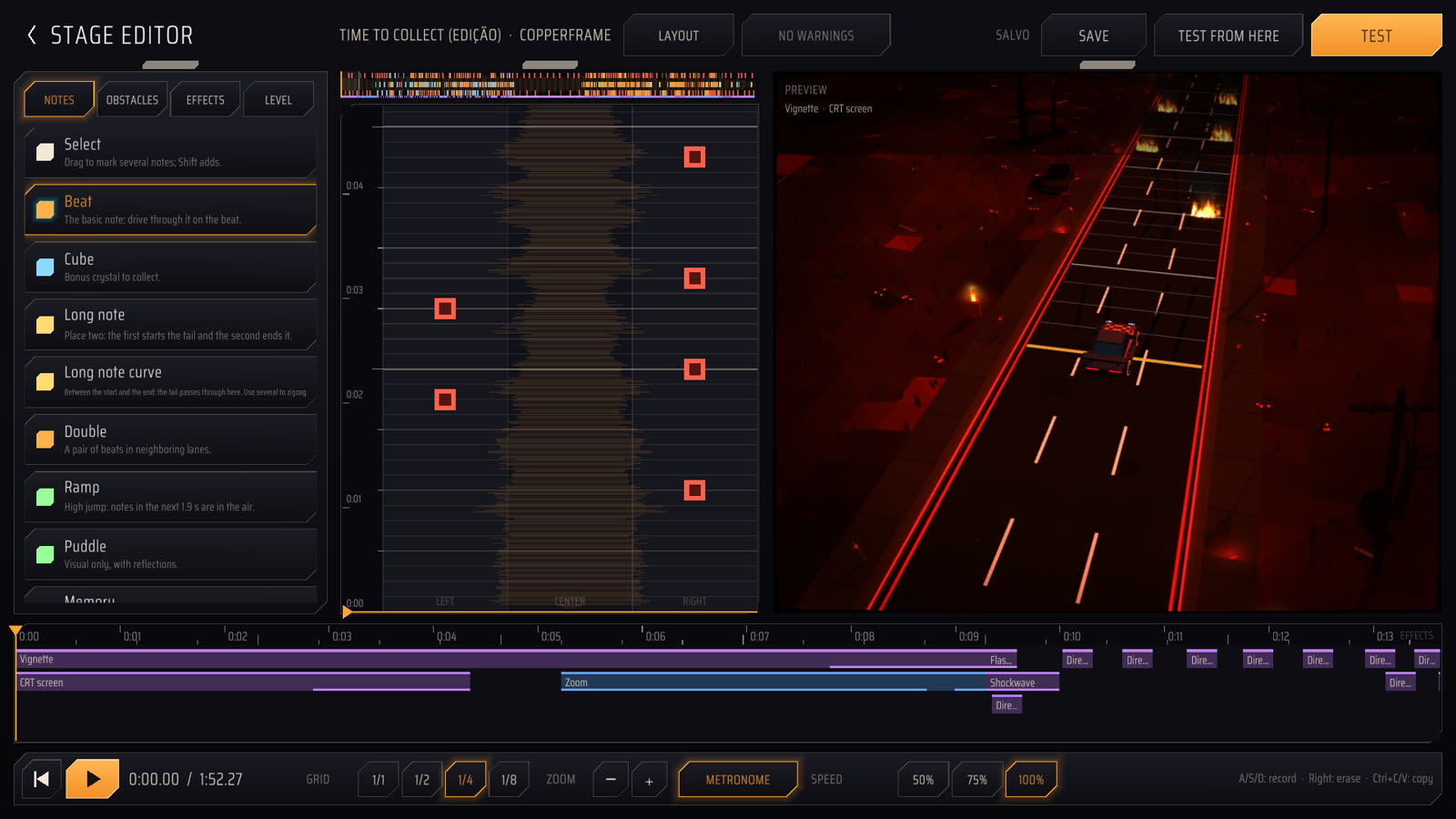
| 1 | Top bar | Save, test, see warnings and change the layout. |
| 2 | Tools | The NOTES, OBSTACLES, EFFECTS and LEVEL tabs. |
| 3 | Timeline | Where notes go, on the left, center and right lanes. The background drawing is the song waveform, and the bar above sums up the whole stage: click it to jump to that point. |
| 4 | Preview | The road as it will look in the game. You can also place and drag notes on it. |
| 5 | Effects | Camera, scenery and other effects along the song. |
| 6 | Controls | Play and pause, grid, zoom, metronome and speed. |
Prefer another arrangement? Drag the panels or use the LAYOUT button, which offers ready-made layouts and an upright or lying timeline.
3. Get the rhythm right
This is the most important step: with the right rhythm, notes land on the beat with little effort.
- Open the LEVEL tab and press Space to play the song with the METRONOME on.
- If the clicks do not follow the song, use DETECT or click TAP in rhythm for at least 4 beats. You can also type the BPM.
- If the clicks have the right speed but come early or late, adjust FIRST BEAT with the − and + buttons. Another option is to stop the cursor on the first beat and click AT CURSOR.
4. Place the notes
In the NOTES tab, pick a tool and click the timeline. The note lands on the nearest grid point.
- Grid: start with 1/1 or 1/2. Use 1/4 and 1/8 for faster parts.
- Move: click a note and drag it.
- Delete: right-click it.
- Select several: use the Select tool and drag over the notes. Hold Shift to add to the selection.
Want to create in time with the music? While it plays, press A, S and D (or 1, 2 and 3) to place the current tool on the left, center and right lanes. For hard parts, lower the SPEED to 50% or 75%.
| Beat | The basic note: pass through it in rhythm. |
| Cube | A bonus crystal to collect. |
| Long note | Place two: the first starts the tail and the second ends it. |
| Long note curve | Goes between the start and the end. The tail passes through it, and several make a zigzag. |
| Ramp | A high jump: notes in the next 1.9 seconds stay in the air. |
| Puddle | Visual only, with reflections. |
| Memory | An optional golden orb. Each stage takes one. |
5. Add obstacles
The OBSTACLES tab shows those of the chosen scenery, and players must jump over or dodge them. Place them as if they were notes.
The scenery is set in the LEVEL tab. If you change it later, obstacles that do not exist in the new scenery appear in the warnings.
The LEVEL tab also sets the name, artist, difficulty from 1 to 5 and a PNG or JPG cover.
6. Use effects
Leave effects for last. In the EFFECTS tab, pick one and click the effects strip, just above the controls.
Drag to move it and pull the right end to change its length. With an effect selected, the tab shows DURATION, INTENSITY, FADE IN and FADE OUT.
7. Test and fix
- TEST saves and plays the stage from the start. When it ends, the editor returns to the same point.
- TEST FROM HERE starts 2 seconds before the cursor, ideal for repeating a part.
- The WARNINGS button takes you to each problem found.
| Long note without its tail end | The second Long note is missing. |
| Curve outside a long note | The curve must be between the start and the end. |
| Obstacle from another scenery | Delete the obstacle or return to the previous scenery. |
| Note after the end of the song | Move or delete the note. |
| More than one memory in the stage | Keep only one. |
8. Publish on the site
- Save the stage and go back to MY STAGES.
- Click EXPORT to generate the .zip file.
- Create an account on this site and confirm your email.
- Open UPLOAD STAGE and send the file, up to 80 MB.
To play a stage downloaded as a .zip, use IMPORT on the LEVELS screen.
Shortcuts
| Space | Play or pause |
| A S D or 1 2 3 | Record on the left, center and right lanes |
| ← → | Move the selection or cursor one grid step |
| ↑ ↓ | Move the selection across lanes |
| Home | Go back to the start |
| Delete | Delete the selection |
| Right click | Delete the clicked note |
| Mouse wheel | Move through time |
| Ctrl + wheel | Zoom in or out |
| Ctrl + A | Select all notes |
| Ctrl + C / X / V | Copy, cut and paste at the cursor |
| Ctrl + Z / Y | Undo and redo |
| Ctrl + S | Save |
Tips for your first stage
- Pick a short song with a clear beat.
- Make a simple version with only Beats first, and test it early.
- Follow what stands out in the song, such as drums, voice or melody, instead of marking everything.
- Avoid lane changes that are too fast: players need time to react.
- Ask someone else to play. You already know every note of your own stage.